We will install Apache in C:Apache2, so extract the ZIP file to C: drive
Apache can be installed anywhere on your system, but you will need to change the configuration file paths accordingly…
Configure Apache
Apache is configured with the text file in httpd.conf contained in the Apache > Apache24>conf folder. Open it with your favorite text editor or notepad.
There are several lines you should change for your production environment:
Change line
From
Define SRVROOT "/Apache24"
To
Define SRVROOT "C:/Apache24"
listen to all requests on port 80:
Listen :80
ServerName localhost:80
Change DocumentRoot
From
DocumentRoot "${SRVROOT}/htdocs"
<Directory "${SRVROOT}/htdocs">
To
DocumentRoot "C:\Apache24\htdocs"
<Directory "C:\Apache24\htdocs">
Then save your file .
Go to C:\Apache24\bin
install Apache as a Windows service
The easiest way to start Apache is to add it as a Windows service. From a command prompt, enter:
cd Apache2bin
# httpd -k install
And run the ApacheMonitor.exe file
Check Apache is running or not in task manager
Open Apache Monitor
If Apache service is running then green icon ,if not then red icon shows.
How to install PostgreSQL in your local system for learning and practicing PostgreSQL.
PostgreSQL was developed for UNIX-like platforms, however, it was designed to be portable. It means that PostgreSQL can also run on other platforms such as Mac OS X, Solaris, and Windows.
Download PostgreSQL Installer for Windows
You need to download the installer from PostgreSQL Official website.
Click on the installer file, an installation wizard will appear
The following each step and its options for installation. Start Installing PostgreSQL
Specify installation folder, choose your own or keep the default folder.
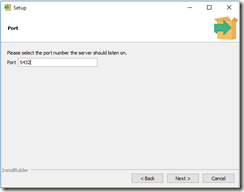
Enter the port for PostgreSQL. Make sure that no other applications are using this port. Leave it as default if you are unsure.
Choose the default locale used by the database.
You completed providing information for the PostgreSQL installer. Click the Next button.
The installation may take few minutes to complete.
Click the Finish button to complete the PostgreSQL installation.
Verify the Installation
First, click on pgAdmin III to launch it. The pgAdmin III GUI will display.
Second, double click on PostgreSQL 9.5 on the object browser. It will ask you for the admin password. Just enter the password you’ve used in the installation step.
pgAdmin will display all the objects that belong to the server.
Prerequisites # yum update # yum install nginx Create the SSL Certificate Create a folder for ssl sudo mkdir /etc/nginx/ssl
Now that we have a location to place our files, we can create the SSL key and certificate files # sudo openssl req -x509 -nodes -days 365 -newkey rsa:2048 -keyout /etc/nginx/ssl/nginx.key -out /etc/nginx/ssl/nginx.crt The entirety of the prompts will look something like this: Country Name (2 letter code) [AU]:US State or Province Name (full name) [Some-State]:US Locality Name (eg, city) []:US City Organization Name (eg, company) [Internet Widgits Pty Ltd]:TECH Organizational Unit Name (eg, section) []:IN Common Name (e.g. server FQDN or YOUR name) []:tech.com Email Address []:admin@ tech.com Configure Nginx to Use SSL Your server block may look something like this: server { listen 80 default_server; listen [::]:80 default_server ipv6only=on; root /usr/share/nginx/html; index index.html index.htm; server_name your_domain.com; location / { try_files $uri $uri/ =404; } } Should be look like this. server { listen 80 default_server; listen [::]:80 default_server ipv6only=on; listen 443 ssl; root /usr/share/nginx/html; index index.html index.htm; server_name your_domain.com; ssl_certificate /etc/nginx/ssl/nginx.crt; ssl_certificate_key /etc/nginx/ssl/nginx.key; When you are finished, save and close the file. Now, all you have to do is restart Nginx to use your new settings: sudo service nginx restart location / { try_files $uri $uri/ =404; } } Test your Setup https://server_domain_or_IP