Monday, October 1, 2018

Install and configure Zabbix

Zabbix 3.4 on Linux 7/6

clip_image001

Zabbix is an open source network monitoring software designed to monitor and track the status of various network devices, servers, and virtual machines

Update system

# yum update

Install required packages

# yum install -y mariadb-server

# yum install php php-cli php-common php-devel php-pear php-gd php-mbstring php-mysql php-xml php-bcmath

clip_image003

# service httpd start

# systemctl start httpd

# service mysqld start ………. Linux 5/6

Install Repository with MySQL database

Note: Zabbix 3.0 require PHP 5.4 later

# systemctl start mariadb ……….. Linux 7

# mysql_secure_installation

clip_image005

clip_image006

Configure yum repository to install Zabbix

CentOS/RHEL 7:

# rpm -i https://repo.zabbix.com/zabbix/3.4/rhel/7/x86_64/zabbix-release-3.4-2.el7.noarch.rpm

CentOS/RHEL 6:

# rpm -i https://repo.zabbix.com/zabbix/3.4/rhel/6/x86_64/zabbix-release-3.4-1.el6.noarch.rpm

Install Zabbix server

# yum install zabbix-server-mysql zabbix-web-mysql zabbix-agent zabbix-java-gateway

# yum update zabbix-server-mysql zabbix-web-mysql zabbix-agent

clip_image008

# wget http://mirror.centos.org/centos/7/os/x86_64/Packages/php-mbstring-5.4.16-45.el7.x86_64.rpm

# rpm –Uvh php-mbstring-5.4.16-45.el7.x86_64.rpm

# wget http://mirror.centos.org/centos/7/os/x86_64/Packages/php-bcmath-5.4.16-45.el7.x86_64.rpm

# rpm -Uvh php-bcmath-5.4.16-45.el7.x86_64.rpm

Now install Zabbix Server

Create initial database

# mysql -u root -p

password

mysql> create database zabbix character set utf8 collate utf8_bin;

mysql> grant all privileges on zabbix.* to zabbix@localhost identified by 'Password';

FLUSH PRIVILEGES;

mysql> quit;

Import initial schema and data. You will be prompted to enter your newly created password.

# zcat /usr/share/doc/zabbix-server-mysql*/create.sql.gz | mysql –u zabbix -p zabbix

Configure the database for Zabbix server

Edit file /etc/zabbix/zabbix_server.conf

DBPassword=password

Configure PHP for Zabbix frontend

Edit file /etc/httpd/conf.d/zabbix.conf, uncomment and set the right timezone for you.# php_value date.timezone Asia/Kolkata

Start Zabbix server and agent processes

Start Zabbix server and agent processes and make it start at system boot:

# systemctl restart zabbix-server zabbix-agent httpd mariadb

# systemctl enable zabbix-server zabbix-agent httpd mariadb

Now your Zabbix server is up and running!

1. Configure Zabbix frontend

Connect to your newly installed Zabbix frontend: http://server_ip_or_name/zabbix

Follow steps described in Zabbix documentation: Installing frontend

2. Start using Zabbix

clip_image010

Check for pre-requisites

Check if you meet all the system requirements. If not configure your php.ini.

clip_image012

Configure DB Connection

Fill your DB details which you created and click on Next Step

clip_image014

Zabbix server details

Edit your server details

clip_image016

Pre-Installation Summary

This will give you a summary of your configuration. Click on Next Step

Install Zabbix

Click on Finish button to install Zabbix serverInstall Zabbix

Click on Finish button to install Zabbix serverInstall Zabbix

Click on Finish button to install Zabbix serverdd

clip_image018

Install Zabbix

Click on Finish button to install Zabbix server

clip_image020

Login to Zabbix

Login to Zabbix with following credentials

UserName : Admin

Password : Zabbix

clip_image022

You will see your Zabbix home screen now

clip_image024

How do I find my AWS Access Key and Secret Access Key?

To find your Access Key and Secret Access Key:

Log in to your AWS Management Console.

Click on your user name at the top right of the page.

Click on the Security Credentials link from the drop-down menu.

Find the Access Credentials section, and copy the latest Access Key ID.

Click on the Show link in the same row, and copy the Secret Access Key.
clip_image001

clip_image002

clip_image003

Adding Users on an Linux

This will be done with a root user.

# useradd tech2more

# passwd tech2more

Type the password for the user tech2more

# su tech2more

Now home location for this user is /home/tech2more.

tech2more user is the owner of this directory.

clip_image001

Sunday, August 26, 2018

Create New Virtual Machine on VMware

Follow the steps for creating new VM on VMware.

Select the Configuration type and Click on Next.

  • Typical
  • Custom

clip_image001

Now give your machine name as per your project.

clip_image002

Check the data store resources.

clip_image003

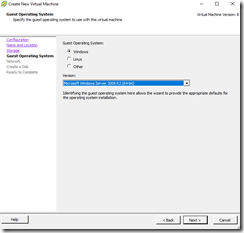
On next Screen, select the Guest Operating System

  • Windows
  • Linux
  • Other

clip_image004

clip_image005

From following list choose the OS specific version.

clip_image006

clip_image007

clip_image008

Check the Network card and Click Next.

clip_image009

Give Hard Disk size and Click Next.

clip_image010

VM is Ready to Complete.

For configure RAM and other settings click on edit option.

clip_image011

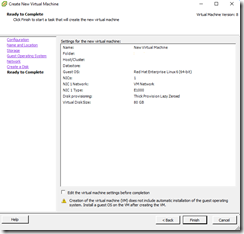
Re-Check the VM configurations and Finish.

clip_image012

Now VM is created.

Friday, August 24, 2018

OrangeHRM Installations using Xampp in Linux


Follow the Xampp installation steps in below link.

https://linuxkbv.blogspot.com/2018/07/xampp-installation-on-centosrheloel7.html

Download OrangeHRM setup from below link.

https://excellmedia.dl.sourceforge.net/project/orangehrm/stable/4.1/orangehrm-4.1.zip

Extract and copy the folder into Xampp htdocs folder.

/opt/lampp/htdocs

Start the Apache and MySQL services in Xampp.

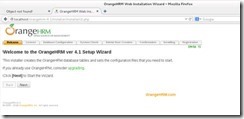
Now hit http://localhost/orangehrm-4.1 in browser and installations will come.


clip_image002

Select the next step.

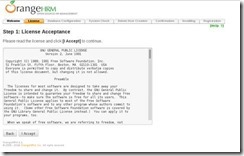
clip_image004

Accept the License and proceed forward.

Choose default values are change as per your requirements.

clip_image006

Following steps are for manually creation of Database.

CREATE DATABASE orangehrm;

Create a database user called orangehrmuser with new password

CREATE USER 'orangehrm'@'localhost' IDENTIFIED BY 'Password';

Then grant the user full access to the database.

GRANT ALL ON orangehrm.* TO 'orangehrm'@'localhost' IDENTIFIED BY 'Password' WITH GRANT OPTION;

Finally, save your changes and exit.

FLUSH PRIVILEGES;

EXIT;

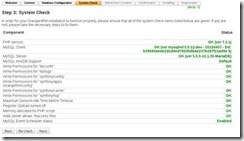
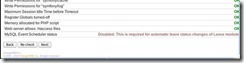
Select Next and you may face the disabled status.

clip_image008

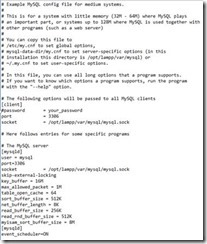
Enable MySQL Event Scheduler status.

Edit this file and add following line.

/opt/lamp/etc/my.cnf

event_scheduler=ON

clip_image010

Save the file and Re- check then Next.

clip_image012

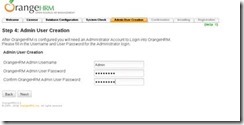
Enter the Admin User Creation and Next.

clip_image014

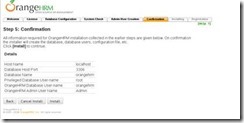
Check the configuration details and Proceed to Install.

clip_image016

Installation complete. Now login and configure internal configuration

clip_image018

clip_image020

Documentations Links:

https://www.orangehrm.com/assets/Documents/User-Guides/OrangeHRM-OS-3.3-Administrative-User-Guide.pdf

https://www.orangehrm.com/resources/download/orangehrm-user-guides/

https://www.orangehrm.com/assets/Documents/User-Guides/OrangeHRM-OS-3.3-Supervisor-User-Guide.pdf

https://www.orangehrm.com/assets/Documents/User-Guides/OrangeHRM-OS-3.3-ESS-User-Guide.pdf

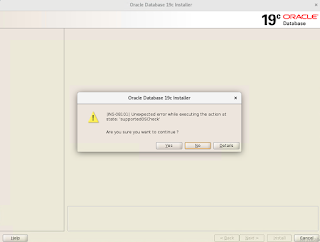
Oracle Database 19c Installation on Oracle Linux 7

Pre-installation settings before installing Oracle Database 19c SELinux If the OS is to be used for an Oracle installation, it is ...